
Stiff hair and soap scum often mean your water softener timer is set incorrectly. A wrong time setting causes the system to regenerate during your shower, sending hard water through your pipes.
This guide shows you exactly how to set the timer on a water softener for push-button and digital models. You will also learn to sync via Bluetooth and fix clock errors after power outages.
Access Clock Setting Mode on Your Unit
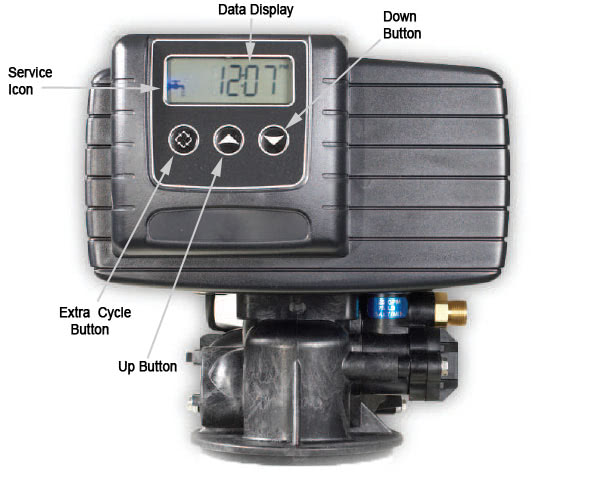
You must enter the correct programming mode before adjusting any time settings. The method depends entirely on whether your control head uses physical buttons or a digital menu screen.
Press SET CLOCK on Push-Button Valves
Locate the button labeled SET CLOCK on your control panel. Press this button once to make the hour digits flash on the display.
Do not hold the button down as a single tap activates the mode. If the screen does not flash, try pressing and releasing it up to three times with a brief pause between taps.
Navigate Menus on Digital Displays
Press the MENU or ENTER button repeatedly until the clock digits begin to flash. This process may require three to five presses depending on your specific model.
Watch the screen closely as you cycle through options like flow rate or next regeneration. Stop immediately when the time display starts blinking to begin editing.
Set the Correct Hour and Minutes

Adjust the time to match your current local time once the clock is in edit mode. Most errors happen here due to confusion between AM and PM settings.
Adjust Hours Using Arrow Keys
Use the Up and Down arrow keys to scroll through the hour values on push-button models. The display cycles from 12 to 1 and toggles the AM or PM indicator automatically.
Stop scrolling when you reach your current hour and verify the period is correct. If you scroll past your target time, continue moving forward or backward since there is no undo button.
Input Minutes and Confirm Period
Press the NEXT button on push-button units or the MENU button on digital models to move to the minutes field. Use the arrow keys to set the exact minute digit displayed on your reference clock.
Some digital systems require a separate confirmation for the AM or PM status after setting the minutes. Select the correct period and press ENTER to lock the time in place.
Save Settings and Exit Programming Mode
Properly exiting the setup mode ensures your new time settings are stored in the system memory. Failing to follow the exit procedure may cause the unit to revert to old data.
Press REGEN to Finalize Push-Button Changes
Press the REGEN button on classic control valves to save your work and exit. The display may flash briefly or emit a soft beep to indicate the time is saved.
If the digits continue flashing after your first press, wait ten seconds or press the button again. The system typically saves automatically after a short timeout period.
Exit Menu Structure on Digital Units
Press the MENU or ENTER button one final time to leave the settings screen on digital interfaces. The clock digits will stop flashing and the screen returns to the home display.
Wait at least fifteen seconds before powering off the unit to allow the system to write the new settings. Check the home screen to ensure the correct time is showing steadily.
Sync Time Via Bluetooth App
Smart models from major brands allow you to sync the time automatically using a smartphone. This method eliminates human error and ensures perfect accuracy without manual entry.
Connect Device to Manufacturer App
Download the official app for your water softener brand from your mobile device store. Open the app and tap the connect icon to find your softener in the Bluetooth device list.
Select your unit and enter the PIN code if prompted by the application. The default code is often found in your manual and is usually a simple sequence like 0000 or 1234.
Auto-Sync Clock to Phone Time
Navigate to the Settings menu within the app and select System Clock. Tap the Sync to Device option to pull the exact time from your phone automatically.
This action updates the time zone and AM or PM status instantly. Scroll to the Next Regeneration section to confirm the event is still scheduled for an off-peak hour like 2:00 AM.
Adjust Timer for Daylight Savings Time
Your water softener clock does not update automatically for daylight savings time changes. You must manually shift the time twice a year to prevent regeneration schedule errors.
Spring Forward One Hour Adjustment
Advance the clock by one hour when daylight savings time begins in the spring. Enter the clock setting mode and increase the hour digit by one without changing the minutes.
Save the new time immediately to ensure the regeneration cycle does not drift into morning usage hours. Perform this adjustment on the same night the clocks change.
Fall Back One Hour Adjustment
Set the clock back by one hour when daylight savings time ends in the fall. Decrease the hour digit by one while keeping the minute setting exactly as it was before.
Confirm the new time is saved correctly to avoid a one-hour delay in your regeneration cycle. This prevents the system from running later than intended during your morning routine.
Reset Timer After Power Outage
Power outages often reset the internal clock to 12:00 AM or a factory default state. A blinking display or a time of 12:00 indicates the timer is wrong and needs immediate attention.
Re-Enter Current Time Immediately
Reprogram the clock as soon as power is restored to the unit. Wait thirty seconds for the display to stabilize before entering the setting mode to input the correct current time.
Use the manual button method or the Bluetooth app to set the time accurately. Do not ignore a reset clock as it will likely schedule regeneration during the day.
Verify Regeneration Schedule Status
Check the Next Regeneration display after resetting the time to ensure the schedule is correct. Some units reset both the clock and the program, potentially moving regeneration to peak hours.
Adjust the regeneration time separately if it shows a peak usage window like 9:00 AM. Consult your manual if you need help reprogramming the regeneration cycle specifically.
Optimize Regeneration Timing Schedule
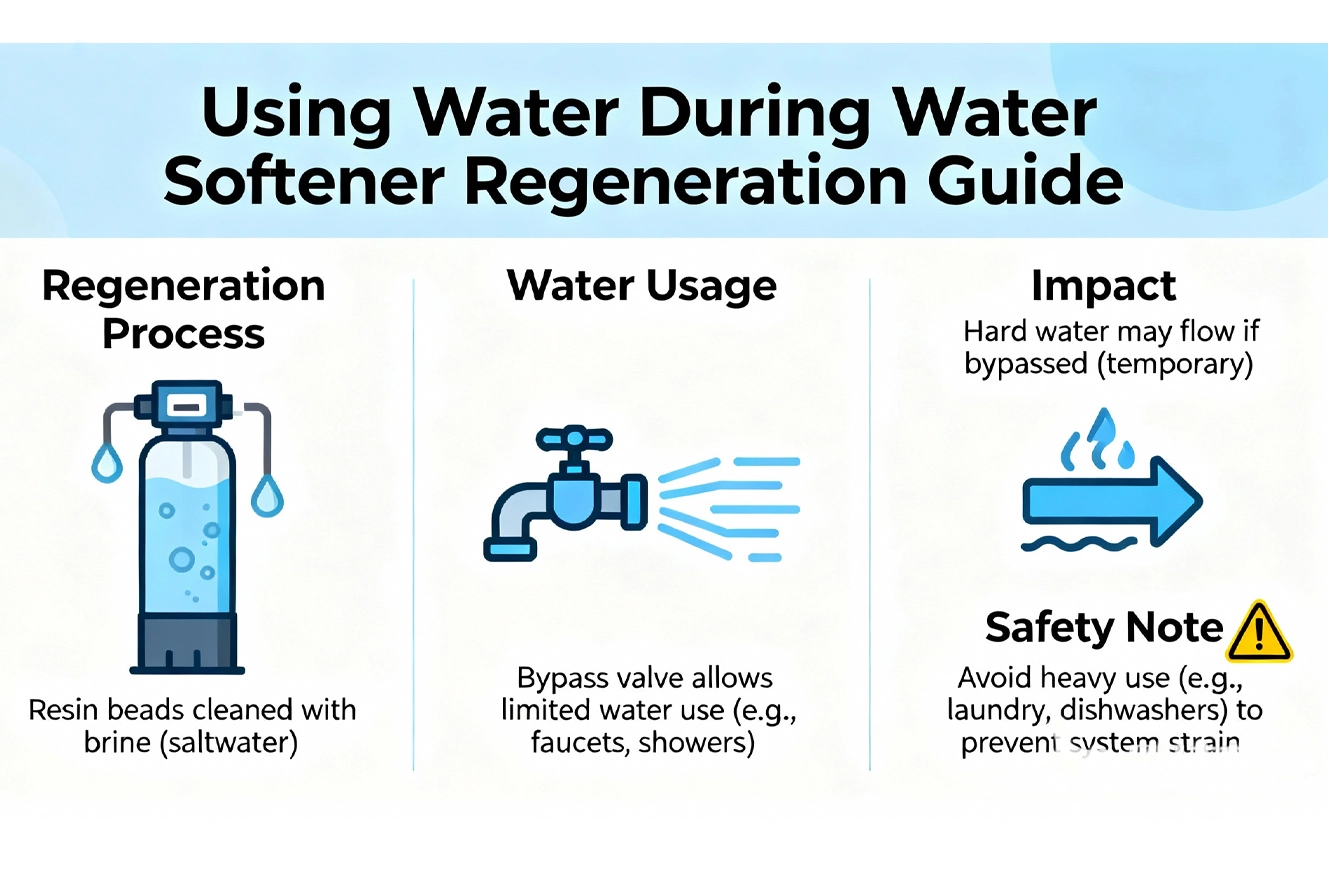
Setting the right time is strategic because regeneration should only happen when no one is using water. The goal is to avoid hard water flare-ups during daily activities.
Schedule Cycle for 2 AM Start
Set your regeneration cycle to start at 2:00 AM for most households. This time is typically the lowest water usage period in a standard home.
Regeneration takes 60 to 90 minutes to complete fully. Starting at 2:00 AM ensures the process finishes before anyone wakes up for morning showers or coffee.
Prevent Hard Water Flare-Ups
Avoid scheduling regeneration between 6:00 AM and 9:00 AM or 5:00 PM and 8:00 PM. These are peak times when untreated water will reach your fixtures if the system regenerates.
Shift the schedule if your household operates on unusual hours like night shifts. The system should only regenerate when water demand is at its absolute lowest point.
Maintain Clock Accuracy Year-Round

A one-time setup is not enough to guarantee consistent performance over the long term. Regular checks prevent small timing drifts from becoming major water quality issues.
Perform Monthly Clock Verification
Compare the softener clock to your phone once every month to check for drift. Reprogram the time if it is off by even fifteen minutes to prevent future scheduling conflicts.
This simple habit helps you catch errors before they cause hard water incidents. It also ensures your daylight savings adjustments remain accurate throughout the year.
Consider Non-Electric Alternative Systems
Switch to a dual-tank non-electric softener if you want to eliminate timer maintenance entirely. These systems use water pressure to regenerate on demand without any internal clock.
They are immune to power outages and daylight savings time changes completely. While the upfront cost is higher, they provide continuous soft water without any programming requirements.
Frequently Asked Questions About Water Softener Timers
What happens if I set the wrong time on my water softener?
Setting the wrong time causes the unit to regenerate during peak usage hours. This sends hard, untreated water to your faucets and showers instead of soft water.
Do water softener clocks adjust for daylight savings automatically?
No, water softener clocks do not adjust automatically for daylight savings time. You must manually change the time forward or backward one hour twice a year.
How do I reset the timer after a power outage?
Press the set clock or menu button to enter programming mode after power returns. Input the current time using the arrow keys or digital menu and save the changes.
What is the best time to schedule water softener regeneration?
The ideal time is 2:00 AM when household water demand is lowest. This prevents untreated water from reaching your fixtures during showers or dishwashing.
Why does my water softener display 12:00 after an outage?
Most units reset to 12:00 AM or a factory default when power is lost. This indicates the internal clock has lost its setting and requires manual reprogramming.
Can I use my phone to set the water softener time?
Yes, smart models with Bluetooth allow you to sync the time via a manufacturer app. This ensures perfect accuracy and eliminates manual entry errors completely.
Key Takeaways for Setting Your Water Softener Timer
Setting the timer correctly prevents hard water flare-ups and saves salt. Always schedule regeneration for off-peak hours like 2:00 AM to avoid disrupting your daily water use.
Remember to adjust the clock manually for daylight savings and after every power outage. Check your unit monthly to ensure the time remains accurate year-round.
Take action today by verifying your current softener time against your phone. If it is incorrect, follow the steps above to reprogram it immediately for optimal performance.